
Approval workflow and notifications
Approval workflow and notifications
Section titled “Approval workflow and notifications”The workflow editor displays the enrollment journey as a vertical timeline. Drag cards or focus the handle and use the keyboard to reorder them. Arrow buttons provide an additional accessible control.
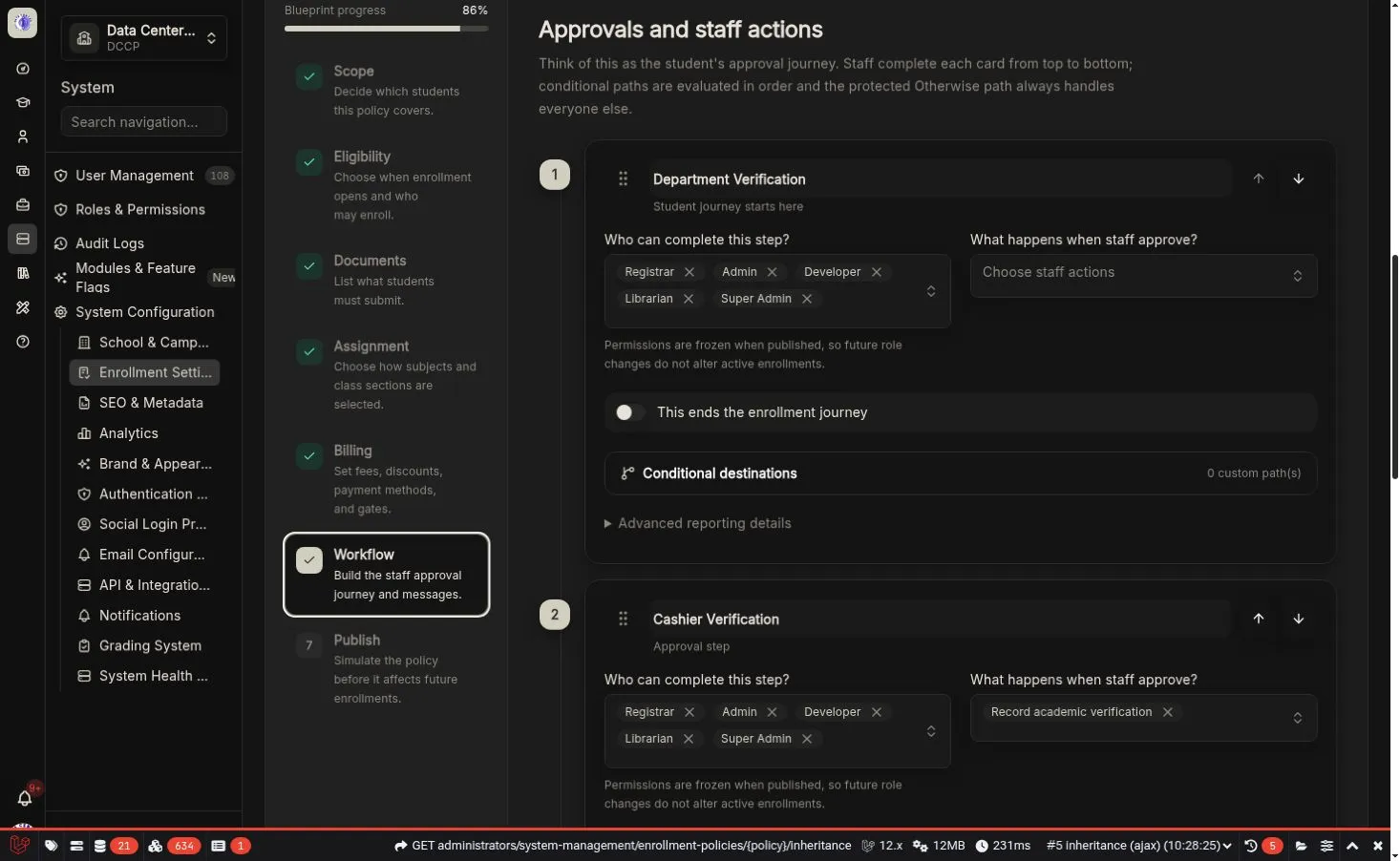
Workflow cards use plain staff-facing language while technical identifiers remain under Advanced.
Every workflow needs
Section titled “Every workflow needs”- Exactly one entry step at the top
- At least one final step
- One protected Otherwise destination for every non-final step
- Only forward, reachable destinations
- Supported rule and action handlers
Cycles, self-links, unreachable cards, ambiguous branches, and parallel approvals are rejected.
Configure a step
Section titled “Configure a step”- Give it a plain staff-facing name, such as Registrar review.
- Choose the staff roles allowed to complete it.
- Select the actions performed after approval.
- Configure any action-specific fields.
- Decide whether the step ends the journey.
- Under Advanced, confirm the reporting status and technical identifier only when needed.
Publication permissions
Section titled “Publication permissions”Roles selected in the editor are converted into a deterministic version-specific permission at publication. That permission is assigned to the selected roles. Changing role assignments for a future version cannot change the authorization recorded by already pinned enrollments.
Conditional destinations
Section titled “Conditional destinations”Use When … continue to … for special paths. Conditions are evaluated in the order shown. Everyone who does not match uses the protected Otherwise destination.
Example:
- When scholarship verification is required, continue to Scholarship office review.
- Otherwise, continue to Cashier review.
Built-in actions
Section titled “Built-in actions”Core actions include status/outcome projection, academic verification, payment verification, subject or class assignment, tuition calculation, assessment generation, notifications, and student/account synchronization.
Post-commit assessment and notification work is recorded as retryable workflow events and dispatched only after the database transaction commits.
Notifications
Section titled “Notifications”Choose the workflow event and delivery channel. Typical events are every transition or completion of a named step. Keep notifications focused: send a message when it helps a student or staff member take the next action.
Example: registrar and cashier
Section titled “Example: registrar and cashier”- Pending review — entry; registrar role; academic verification action; Otherwise → Cashier review.
- Cashier review — cashier role; tuition, assessment, and payment verification actions; Otherwise → Enrollment completed.
- Enrollment completed — terminal completed outcome; notify student.
Simulate both a student who passes and one blocked by a payment gate.